Grower Management
Everything for working with the growers you already have: email them all at once, step in when someone goes on vacation or sells out, keep balances straight, and bring new growers aboard. Your growers are the heart of your market — these tools help you take good care of them.
Finding Grower Management
On your admin page, open the 🌾 Grower Management section. The header shows how many growers are currently active — and when grower account debits or credits are still waiting to be cleared after a check run, a red badge totaling the debits and a green badge totaling the credits appear right on the collapsed header, so you can see there's settling-up to do without even opening the section. Inside, the section holds everything on this page: the grower money tools, the grower table, per-grower product controls, balance tools, the Email Your Growers form, and the Add Grower button.
Grower Money Tools
Three buttons at the top of the Grower Management section cover paying your growers. (If you're used to finding them on the Our Growers page, they've moved — they now live here, where grower accounts are managed.)
- 💰 Grower Checks (CSV) downloads a spreadsheet of what each grower is owed — who to make the check out to and their check total, with your market's commission math already applied. This is the source of truth when it's time to cut checks.
- 📊 Total Sales Report (PDF) generates a printable report of total sales across the market.
- ↩️ Chargebacks opens the chargebacks page — items growers were paid for but didn't deliver — so you can settle those against grower accounts. The full after-pickup workflow is in the Pickup Management guide.
After a check run, any grower account debits or credits still waiting to be cleared show as the red and green badges on the section's collapsed header described above.
Email Your Growers
The Email Your Growers button at the bottom of the Grower Management section sends one message to every active grower in your market. Use it for deadline reminders, weather calls, market-day changes, policy updates — anything the whole crew needs to hear. Write a subject and a message, and it goes out to your whole grower list at once.
- Reaches growers only. Customers and volunteers have their own tools — the weblog/newsletter for shoppers and subscribers, and the volunteer tools in Volunteer Management.
- Growers can email each other too. Each grower has their own Email Other Growers tool for coordinating with fellow growers — harvest logistics, pickup-day plans. Yours is the megaphone; theirs is grower-to-grower.
The Grower Table
Active growers are listed with their active product count and current balance, with action buttons on each row. This is your at-a-glance view of who's participating and who might need a nudge — a grower whose product count has dropped to zero mid-season is often worth a friendly check-in.
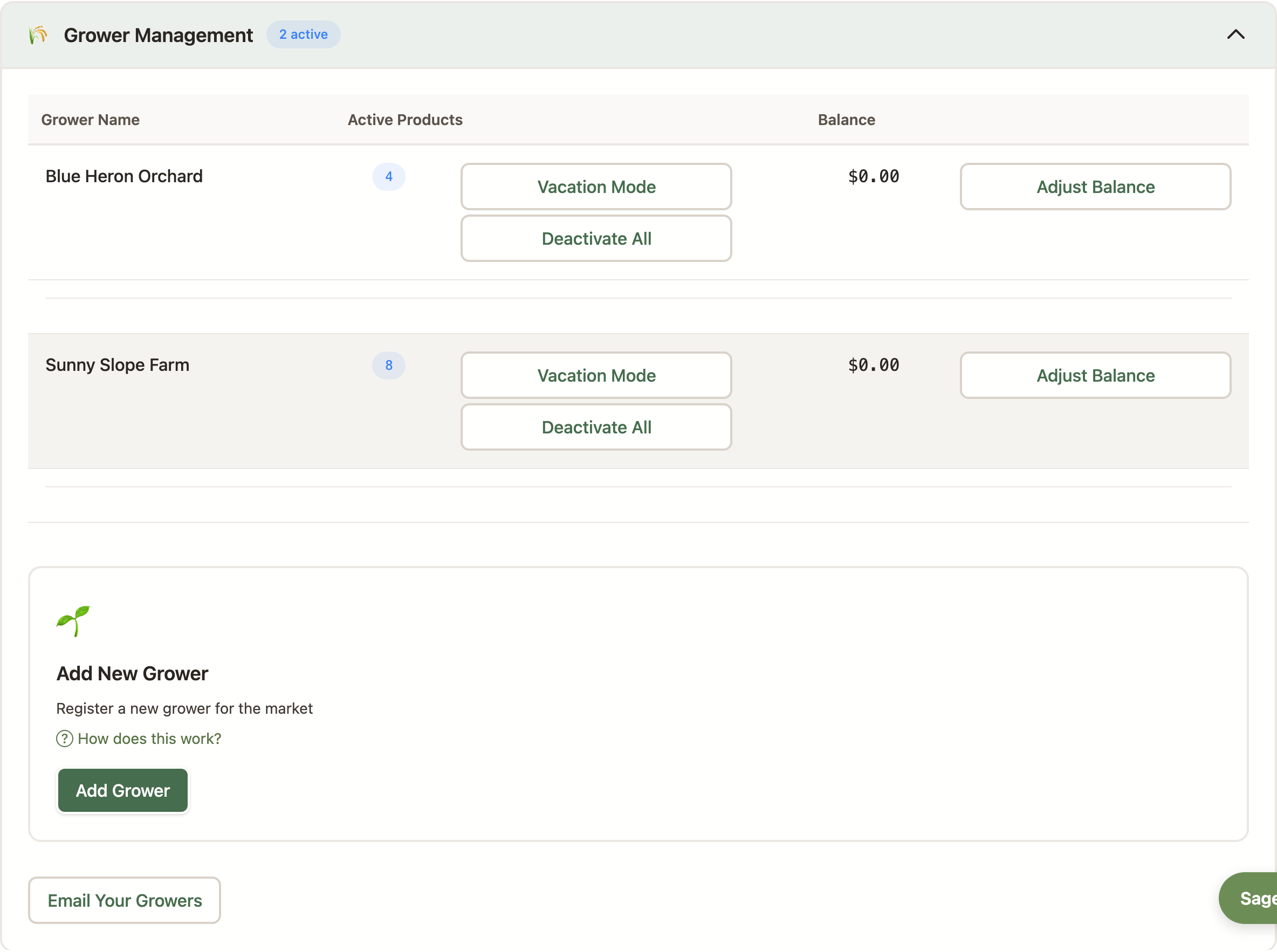
Product Controls: Vacation Mode, Deactivate, Reactivate
Sometimes a grower can't tend their listings — a family emergency, a vacation, a sold-out week. Each grower's row offers controls for those moments (which buttons you see depends on the grower's current state):
- Vacation Mode marks all of that grower's products as unavailable to purchase, while remembering their quantities. The grower gets a Vacation Mode badge in the table until you — or they, from their own grower page — turn it off.
- Deactivate All goes further: it zeroes out the available quantities of all their products and marks them unavailable. Use this for longer absences or departures where stale quantities shouldn't linger. One thing to know: since quantities are cleared, there's no one-click undo — when the grower returns, they'll enter fresh quantities themselves.
- Exit Vacation Mode appears while a grower is on vacation — it brings back every product that still has quantity available. When a grower isn't on vacation but has unavailable products with quantities set, you'll see Reactivate Products instead (labeled with the count, like “Reactivate 12 Products”), which does the same thing.
Grower Balances
Each row also carries balance tools: Adjust Balance applies a credit or debit to the grower's account — enter a positive amount when the market owes the grower, negative when the grower owes the market — and Zero Out Balance clears it — typically after settling up outside the platform. For the full picture of how money moves between your market and your growers, see Financial Management.
Adding New Growers
The Add Grower button creates a new grower in your market. The complete flow — applications, approvals, reactivating a returning grower, and the common bumps along the way — lives in the Grower Onboarding guide.
Related Tools
🌱 Grower Onboarding
Adding growers, approving applications, and welcoming back returning growers.
Grower Onboarding →📦 Drop-off Locations (Beta)
Let each grower pick the delivery spot that works for them when your market runs more than one.
Drop-off Locations →🥇 Priority Groups (Beta)
Put first-choice growers' listings first, with backups appearing when they sell out.
Priority Groups →📋 Daily Operations
The rhythms of a market week, including the zero-quantity cleanup button.
Daily Operations →